
WordPress
Copy a document as clean WordPress blocks or classic-editor HTML, or publish it to your site as a draft or post.
Permissions
When you install it, Typora asks you to allow it to:
- Send and receive data from the server you enter in its Site option.
- Read the open document.
- Read and write clipboard text.
Sandboxed code. Runs code in a locked-down worker that can only use the API its permissions allow.
What it adds
- Commands
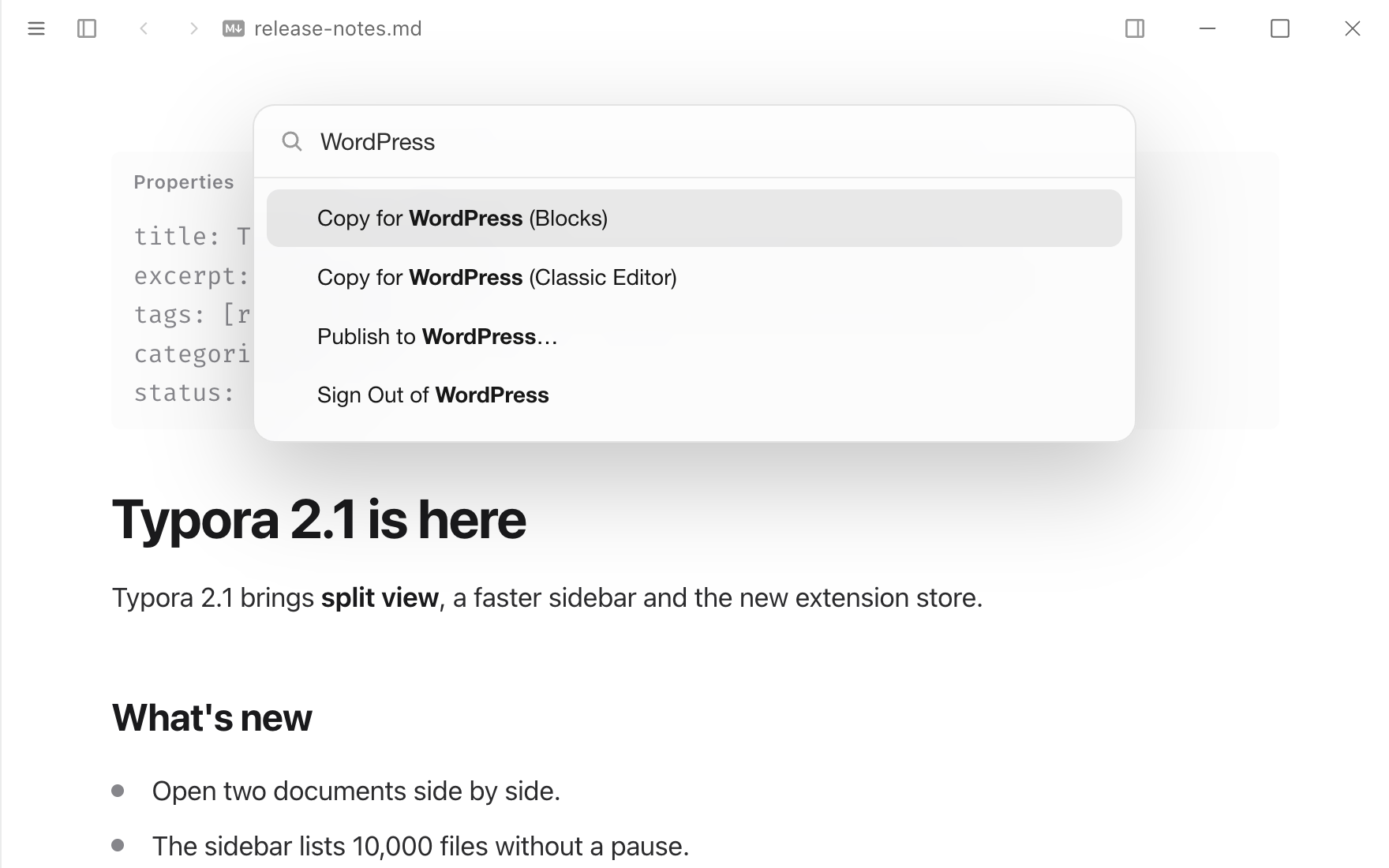
- Copy for WordPress (Blocks), Copy for WordPress (Classic Editor), Publish to WordPress…, Sign Out of WordPress
- Settings
- Site, User name, Application Password, New posts are, Upload local images, Leave the title heading out, Keep <p> tags in classic HTML
- Window code
- Runs in a sandboxed worker in each window.
Readme
WordPress
Get a Typora document into WordPress without the stray <span>s, <body> and styles of an HTML export (typora-issues#1609). Three ways, all from the command palette:
| Command | What you get |
|---|---|
| WordPress: Copy for WordPress (Blocks) | Block-editor markup: headings, paragraphs, lists, quotes, code, tables, images and separators arrive as real blocks. Paste it into a post. |
| WordPress: Copy for WordPress (Classic Editor) | Clean HTML for the Text tab of the classic editor. Paragraphs are separated by blank lines, without <p> tags, because WordPress adds those itself (an option keeps them). |
| WordPress: Publish to WordPress… | Creates a post on your site through the WordPress REST API, as a draft by default. Publishing the same document again updates that post. |
Sign Out of WordPress forgets the saved Application Password.
Front matter is never part of the content. When the document starts with a # Heading that is its title, the heading becomes the post title rather than the first line of the post (Leave the title heading out).
Publishing
- In WordPress, open Users ▸ Profile, scroll to Application Passwords, enter a name such as "Typora" and click Add New Application Password. Copy the password it shows.
- In Typora, open Settings ▸ Extensions ▸ WordPress ▸ Options and enter your site's address (
https://example.com, or the folder WordPress is installed in), your user name and the Application Password. Saving checks them with your site, so a mistake shows up in the form. - Run Publish to WordPress…. If you left the password out, it asks for it the first time.
An Application Password isn't your login password: you can revoke it in WordPress without touching anything else. Because every publish needs it, Typora keeps it in your system's credential store: the Keychain on macOS, encrypted for your account on Windows, the desktop keyring on Linux. It never goes into your documents or Typora's settings, and it is sent only to your site. Sign Out of WordPress deletes it from this computer. On Linux without a keyring, saving warns you first: see Publishing.
Application Passwords need HTTPS (or a site in local development) and a WordPress with the REST API turned on, which is the default since 5.6. Sites without pretty permalinks are reached at ?rest_route=.
These front matter keys are read:
| Key | Use |
|---|---|
title | Post title. Otherwise the leading # Heading, otherwise the file name. |
slug | The post's URL slug. |
excerpt (or description) | The excerpt. |
tags | A list or a comma-separated string. Missing tags are created. |
categories (or category) | Matched by name or slug. Missing ones are created if your role allows it. |
status | draft, pending, private or publish; overrides the option. |
date | 2026-10-17 or 2026-10-17 09:30, in the site's time zone. |
featured_image (or cover, image) | A local image to upload and set as the featured image. |
wordpress_id, wordpress_url | Legacy bindings adopted for the same site. New bindings are kept in ExtensionData. |
Publishing a post publicly, or updating one that is live, asks first. Updating keeps a post's status unless the front matter sets one.
Images
Publishing uploads the images stored on your computer — Markdown images and <img src> with a relative path, an absolute path or a file: URL — to the site's Media Library, and the post links to the uploaded copies. Image blocks are tied to their attachments, so WordPress offers its usual sizes and editing for them. Your document isn't changed: it keeps pointing at the files on your computer.
- Each image is uploaded once per site. Typora remembers the uploads by their contents, so publishing again, or another post using the same file, reuses them; a changed file is uploaded again.
- Images on the web stay as they are.
- An image that cannot be read or uploaded stops publication before the article is written. Successfully uploaded media may remain in the Media Library.
- The front matter's
featured_image(orcover, orimage) becomes the post's featured image when it is a local image. Use the same file in the document, as Typora only reads images the document shows.
With Upload local images off, documents containing local images cannot be published; use hosted URLs first.
Math is kept as $…$ / $$…$$ text for a math plugin such as KaTeX or MathJax to draw. Task lists become ☐ / ☑ items, and ==highlight==, ~sub~ and ^sup^ become <mark>, <sub> and <sup>.
Permissions
network: {config.siteUrl}— only the site you enter in the options, and nothing until you do. The copy commands never use the network.document: "read"— reads Markdown and referenced local images for conversion and upload. Publication records are stored separately.clipboard— the two copy commands.
The Application Password is kept in the extension's private storage in Typora's settings folder, and only sent to your site. The same storage keeps the list of uploaded images (their checksums and Media Library ids). Sign Out of WordPress, or uninstalling the extension, removes it. You can also revoke it in WordPress at any time.
Third-party code
vendor/marked.esm.js is marked 16.4.2 unchanged from npm (marked/lib/marked.esm.js), MIT license in vendor/LICENSE-marked.md.
Publish protocol v1 (1.1)
Adapter key: typora.wordpress:wordpress. Copy commands remain Export features; publication is contributed separately under Publish. The CLI uses the same adapter, including media upload and comment reads:
typora publish ./posts --to typora.wordpress:wordpress --dry-run
typora publish ./posts --to typora.wordpress:wordpress
typora publish status article.md --to typora.wordpress:wordpress --refresh --comments --json
Sign in once using Publish to WordPress… before CLI use. The CLI requires a running Typora and reads saved files. The Publish command uses live editor content. New bindings no longer modify front matter; back up ExtensionData. Use a unique publish_id before first publication to retain identity across moves, or use --bind <post-id> to associate a moved/existing article. Remote conflicts, missing posts and uncertain write outcomes are reported without silently creating another article.
Comment retrieval currently returns the first 100 comments and explicitly marks a full page as potentially truncated. Core WordPress does not provide view statistics; this adapter advertises no metrics capability.